Work Orders
Work Orders displays all production orders, their status, scheduling, and provides tools to manage and release them.
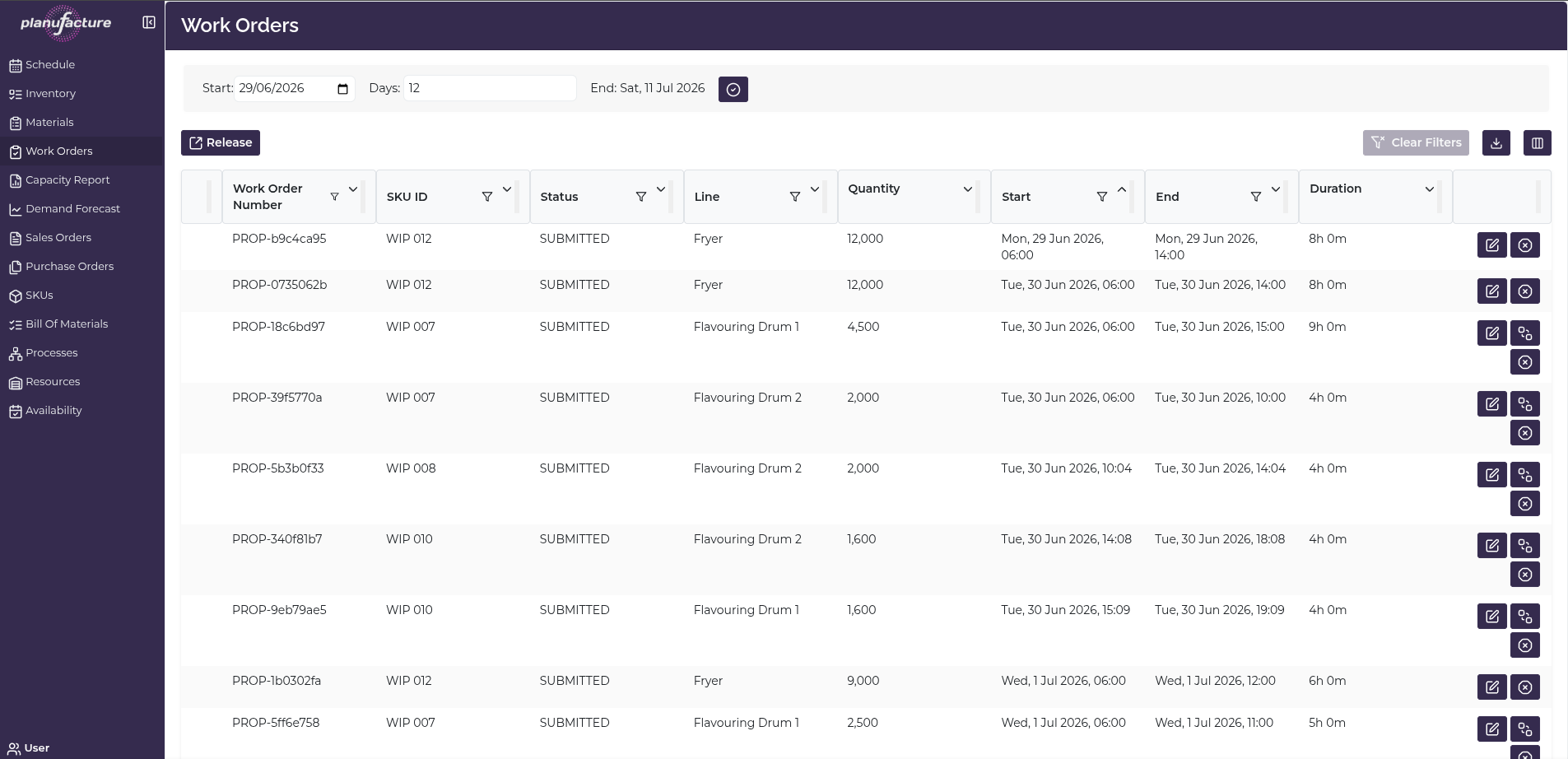
Overview
- List of all work orders with key details
- Status tracking (PLANNED, NEW, SUBMITTED, READY, IN_PROGRESS, FINISHED, CANCELLED)
- Scheduling information (start, end, duration)
- Resource assignments for production
- Bulk release functionality
Date Range Controls
- Start: Beginning date for work order view
- Days: Number of days to display (e.g., 12, 28 days)
- End Sat: Calculated end date
- Date picker with calendar interface
Work Orders Table
Columns
- Work Order Number: Unique identifier (e.g., PROP-12k4cqp5)
- SKU ID: Product code being produced
- Status: Current state (PLANNED, NEW, SUBMITTED, READY, IN_PROGRESS, FINISHED, CANCELLED)
- Line: Production resource assigned (e.g., Fryer, Flavouring Drum 1, 6 Row Oven)
- Quantity: Amount to produce
- Start: Scheduled start date and time
- End: Scheduled end date and time
- Duration: Total production time (e.g., 8h 0m, 4h 0m, 1h 15m)
Sortable Columns
Most columns have sort icons allowing you to order by:
- Work Order Number
- SKU ID
- Status
- Line
- Quantity
- Start time
- End time
- Duration
Row Actions
Each work order row has action icons on the right:
- Edit icon: Modify work order details
- Additional actions icon: Access more options
- Info icon: View work order details
Release Button
Release button at top left:
- Opens Release Work Orders dialog
- Allows bulk release of work orders to production
Release Work Orders Dialog

Table Columns:
- Work Order: Work order number
- SKU Code: Product code
- Line: Assigned production resource
- Quantity: Amount to produce
- Start: Scheduled start time
- End: Scheduled end time
- Duration: Production duration
Actions:
- Clear Filters: Reset any filters
- Cancel: Close dialog without releasing
- Release: Send selected work orders to production
Work Order Details Dialog
Click the info icon to view Work Order Number dialog:
NOTE: Warning if start time is before current time in schedule
Fields Displayed:
- Process: Full process name (e.g., "Baking-WIP Packing :: White 15g Retail Frying Tortillas Grey tray [1KG]")
- Start Time: Date/time picker showing scheduled start
- End Time: Scheduled end date/time
- Quantity: Amount to produce
- Min Lot Size: Minimum batch size
- Max Lot Size: Maximum batch size
- Step Size: Batch increment
- Duration: Total time (e.g., "1 hours 7 minutes")
Actions:
- Cancel: Close without changes
- Save: Apply modifications
Change Line Dialog
Reassign work order to different production resource:
Dialog shows:
- Dropdown list of available resources
- Current line may be pre-selected
Actions:
- Close: Cancel without changing
- Change Line: Apply new line assignment
Filtering and Controls
Top Bar Controls
- Clear Filters: Reset all applied filters
- Download icon: Export work orders data
- Grid/List view toggle: Change display format
Column Filters
Click filter icons in column headers to filter by:
- Work Order Number
- SKU ID
- Status
- Line
- Quantity
- Start/End times
- Duration
Common Workflows
Viewing Work Orders for a Date Range
- Navigate to Work Orders
- Set Start date
- Adjust Days to show desired period
- Review work orders in table
- Sort by Start time to see chronological order
Releasing Work Orders to Production
- Click Release button
- Review work orders in Release Work Orders dialog
- Verify quantities, lines, and timing
- Click Release to send to production floor
- Work orders change status accordingly
Editing Work Order Details
- Locate work order in table
- Click Edit icon (pencil) on the right
- Work Order Number dialog opens
- Modify:
- Start Time (date/time picker)
- Quantity
- Other editable fields
- Click Save to apply changes
- System recalculates End Time and Duration
Changing Resource Assignment
- Click Additional actions icon on work order row
- Select Change Line option
- Change Line dialog opens
- Select new resource from dropdown
- Click Change Line to apply
- Work order reassigned to new resource
Filtering by Status
- Click filter icon in Status column
- Select desired status (e.g., SUBMITTED, NEW)
- Table shows only matching work orders
- Use Clear Filters to reset
Sorting Work Orders
- Click sort icon in any column header
- Table sorts ascending or descending
- Useful for:
- Finding earliest/latest start times
- Grouping by line
- Ordering by quantity or duration
Exporting Work Order Data
- Click Download icon in top bar
- Export work orders to file
- Use for offline analysis or reporting
Understanding Work Order Status
Statuses:
- PLANNED: Auto-scheduled, not yet confirmed
- NEW: Created, not yet released
- SUBMITTED: Submitted for scheduling
- READY: Released and ready for production
- IN_PROGRESS: Currently in production
- FINISHED: Production complete
- CANCELLED: Work order cancelled
Status indicates where the work order is in its lifecycle.
Tips
- Use Release button to send multiple work orders to production at once
- Sort by Start to see production sequence
- Filter by Line to focus on specific production resources
- Check Duration column to understand production time requirements
- Edit work orders to adjust timing or quantities before release
- Change Line to balance load across production resources
- Monitor Status to track work order progress
- Use Date Range controls to focus on specific planning periods
- Export data for capacity analysis or reporting