SKUs
SKUs manages product master data, including product details, inventory parameters, and production network relationships.
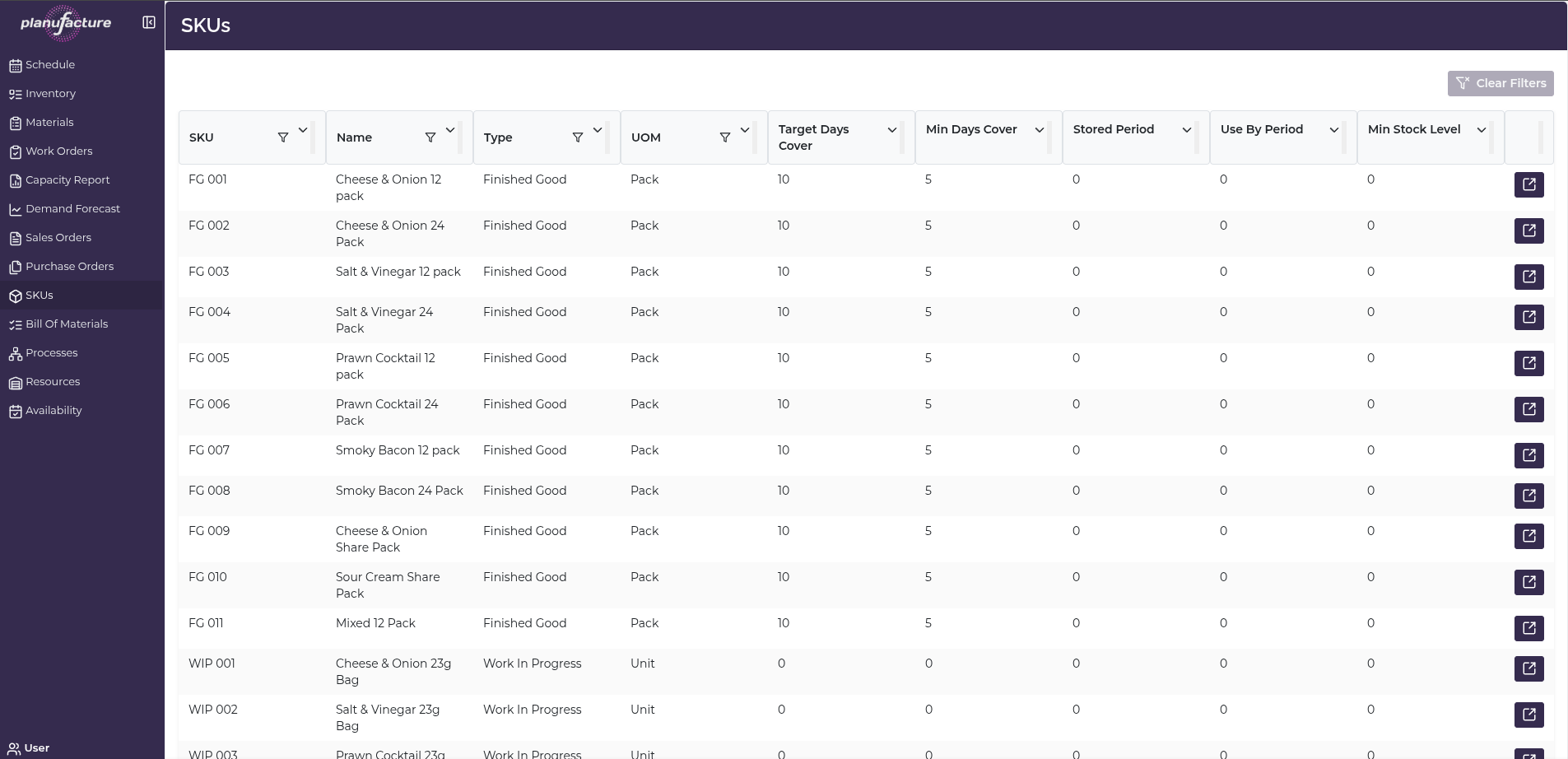
Overview
- List of all products with key attributes
- Product details including type, UOM, and inventory parameters
- Production network showing how products are made
- Bill of materials and process relationships
Top Bar Controls
Actions
- Clear Filters: Reset all applied filters
SKUs Table
Columns
- SKU: Product code/identifier
- Name: Product description
- Type: Product type (e.g., Work In Progress, Finished Good, Raw Material, Package)
- UOM: Unit of measure (e.g., Kg, Case, Each)
- Target Days Cover: Target inventory coverage in days
- Min Days Cover: Minimum inventory coverage threshold
- Stored Period: Shelf life or storage duration
- Use By Period: Expiration or use-by duration
- Min Stock Level: Minimum stock quantity
Sortable Columns
Most columns have sort icons allowing you to order by:
- SKU
- Name
- Type
- UOM
- Target Days Cover
- Min Days Cover
- Stored Period
- Use By Period
- Min Stock Level
Row Actions
Each SKU row has a detail icon (right side) to view full product information.
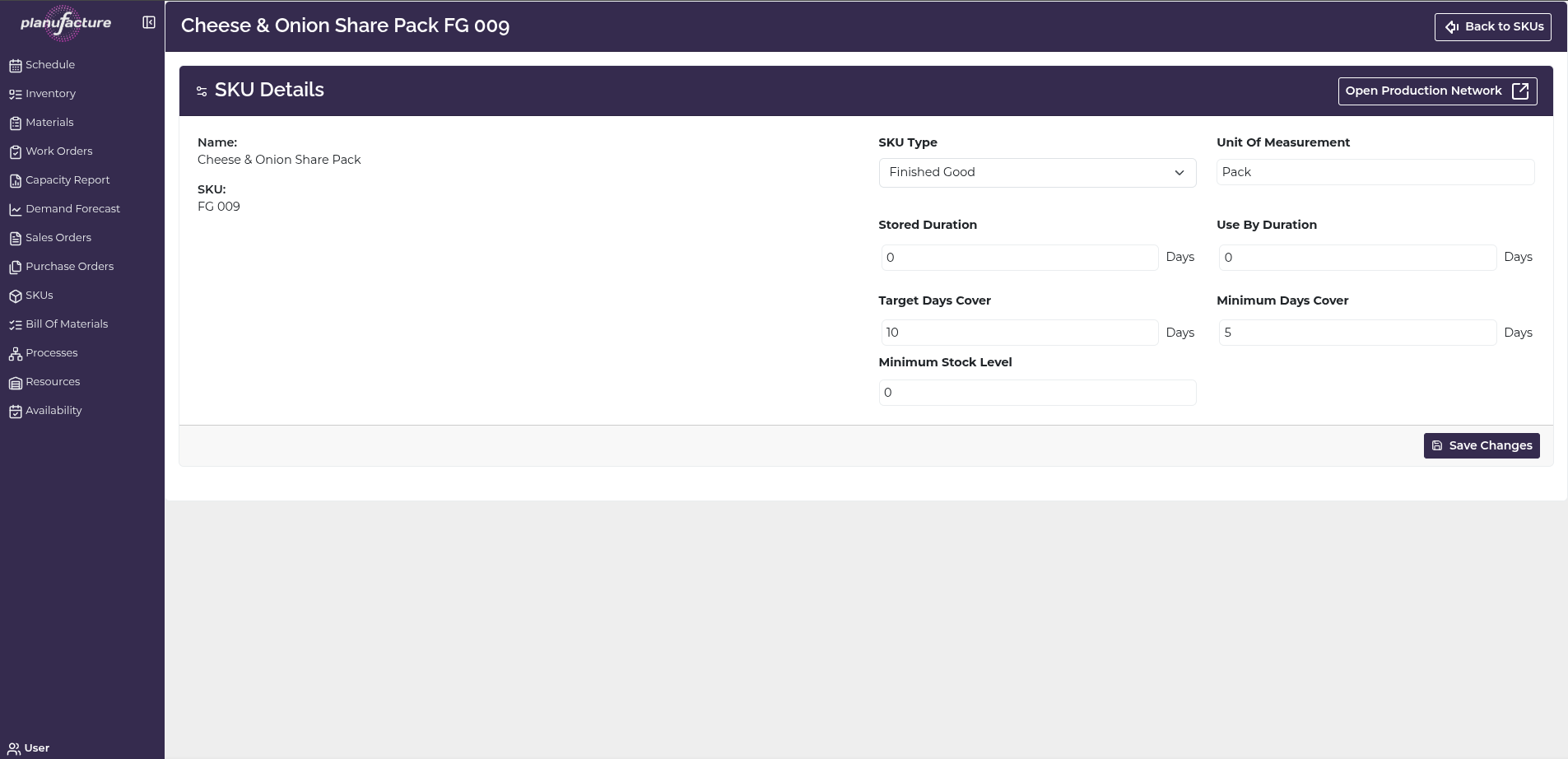
SKU Details View
Click the detail icon to view and edit product information:
Page Header:
- Title: Product name and SKU (e.g., "White Masa - Soft White [209.45kg] 02-01-04")
- Back to SKUs button: Return to list
- Open Production Network button: View production relationships
SKU Details Section
Left Column:
- Name: Product name (display only)
- SKU: Product code (display only)
Right Column:
- SKU Type: Dropdown selector (e.g., Work In Progress, Finished Good, Raw Material, Package)
- Unit Of Measurement: Dropdown (e.g., Kg, Case, Each)
Inventory Parameters:
- Stored Duration: Number of days (with "Days" label)
- Use By Duration: Number of days (with "Days" label)
- Target Days Cover: Number of days (with "Days" label)
- Minimum Days Cover: Number of days (with "Days" label)
- Minimum Stock Level: Quantity value
Actions:
- Save Changes: Apply modifications to SKU
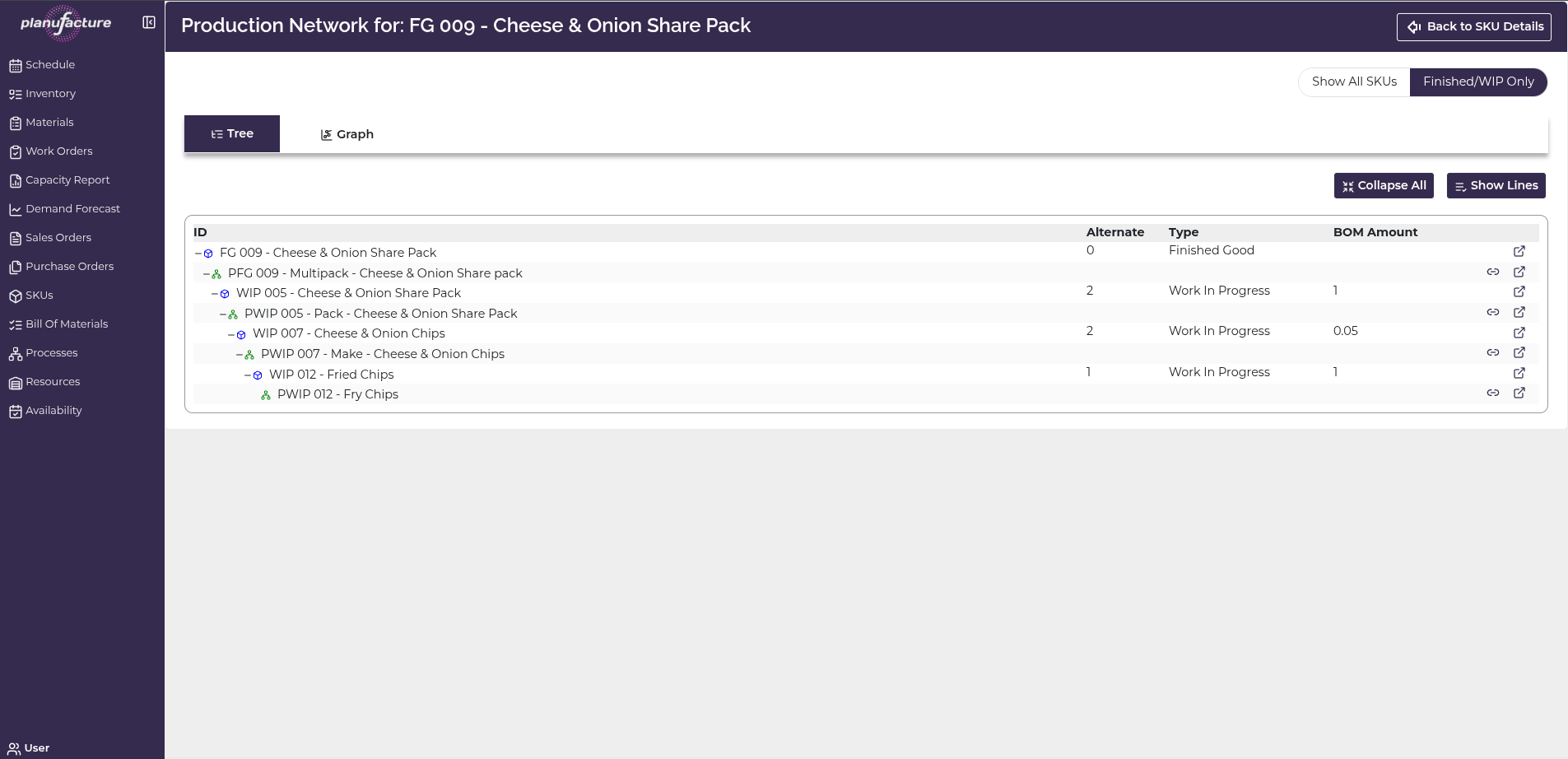
Production Network View
Click Open Production Network to see how the product is made:
Page Header:
- Title: "Production Network for: [SKU] - [Product Name]"
- Back to SKU Details button: Return to details
View Options
Filters:
- Show All SKUs: Show all products in network
- Finished/WIP Only: Filter to finished goods and work in progress
- Show Primary Alternates Only: Show only primary production paths
View Tabs
Tree Tab
Hierarchical view of production relationships:
Columns:
- ID: SKU code with hierarchical indentation
- Alternate: Alternate production path indicator
- Type: Product type (Work In Progress, etc.)
- BOM Amount: Bill of materials quantity
Features:
- Expandable/collapsible tree structure
- Shows parent-child relationships
- Indentation indicates production levels
- Collapse All / Show Lines buttons
Example structure:
└─ 02-01-04 - White Masa - Soft White [209.45kg]
   └─ 002-02-01-04 - Mixing :: White Masa - Soft White [209.45kg]
      └─ 01-01-04 - White Milled Cooked - Soft White [745kg]
         └─ 001-01-01-04 - Cooking-Milling :: White Milled Cooked - Soft White [745kg]
Graph Tab
Visual network diagram:
Features:
- Node-based visualization
- Nodes represent SKUs/products
- Connections show production relationships
- Color-coded by type:
- Green: Input/Process
- Blue: Intermediate SKU
- Red: Output/Alternate SKU
- Other colors: Different product types
Legend:
- Process
- SKU
- Alternate SKU
- Downgraded
- Critical
- Input
Controls:
- Compressed: Toggle view density
- Drag to pan, hover to view inputs and outputs
- Interactive node exploration
Example flow:
001-01-01-04 → 01-01-04 → 002-02-01-04 → 02-01-04
(Cooking)    (Milled)   (Mixing)      (Final Product)
Common Workflows
Viewing All Products
- Navigate to SKUs
- Review table of all products
- Sort by Type to group products
- Or sort by Name alphabetically
Editing Product Details
- Click detail icon on SKU row
- SKU Details page opens
- Modify:
- SKU Type
- Unit Of Measurement
- Stored Duration
- Use By Duration
- Target Days Cover
- Minimum Days Cover
- Minimum Stock Level
- Click Save Changes
Understanding Production Network
- From SKU Details, click Open Production Network
- Select Tree tab for hierarchical view
- See how product is made:
- Raw materials (bottom level)
- Intermediate products (middle levels)
- Finished goods (top level)
- Identify processes and BOM relationships
Visualizing Production Flow
- In Production Network, select Graph tab
- View visual network diagram
- Follow flow from inputs to outputs
- Identify:
- Production steps
- Material inputs
- Intermediate products
- Final products
- Use filters to simplify view
Setting Inventory Parameters
- Open SKU Details
- Configure:
- Target Days Cover: Desired inventory level
- Minimum Days Cover: Reorder point
- Minimum Stock Level: Safety stock quantity
- Stored Duration: Shelf life
- Use By Duration: Expiration period
- Save changes
- System uses these for planning and alerts
Understanding SKU Types
Common types:
- Finished Good: End products sold to customers
- Work In Progress: Intermediate products in production
- Raw Material: Ingredients and inputs
- Package: Packaging materials
Type determines how the SKU is treated in planning and inventory.
Understanding Production Network
Tree view shows:
- Hierarchical relationships: Parent-child structure
- BOM amounts: Quantities required
- Processes: Production steps
- Alternates: Alternative production paths
Graph view shows:
- Visual flow: How materials transform into products
- Dependencies: What inputs are needed
- Production paths: Multiple ways to make a product
- Network complexity: Overall production structure
Tips
- Use SKU Type to categorize and filter products
- Set Target Days Cover based on demand variability and lead times
- Configure Minimum Days Cover to trigger reorder alerts
- Stored Duration and Use By Duration support FEFO and expiration management
- Production Network helps understand material requirements and dependencies
- Tree view is best for detailed BOM analysis
- Graph view is best for visualizing overall production flow
- Use Show Primary Alternates Only to simplify complex networks
- BOM Amount shows material consumption ratios
Related
- Inventory: SKU parameters drive stock management and alerts
- Materials: Raw material SKUs tracked in Materials
- Work Orders: Production creates SKUs based on processes
- Bill of Materials: BOM relationships shown in production network
- Processes: Production network shows which processes make which SKUs
- Schedule: SKUs scheduled for production based on demand
- Demand Forecast: Forecasts created for SKUs
- Sales Orders: Customers order SKUs
- Purchase Orders: Raw material SKUs purchased from suppliers