Sales Orders
Sales Orders displays customer orders, delivery dates, and line items for fulfilment tracking.
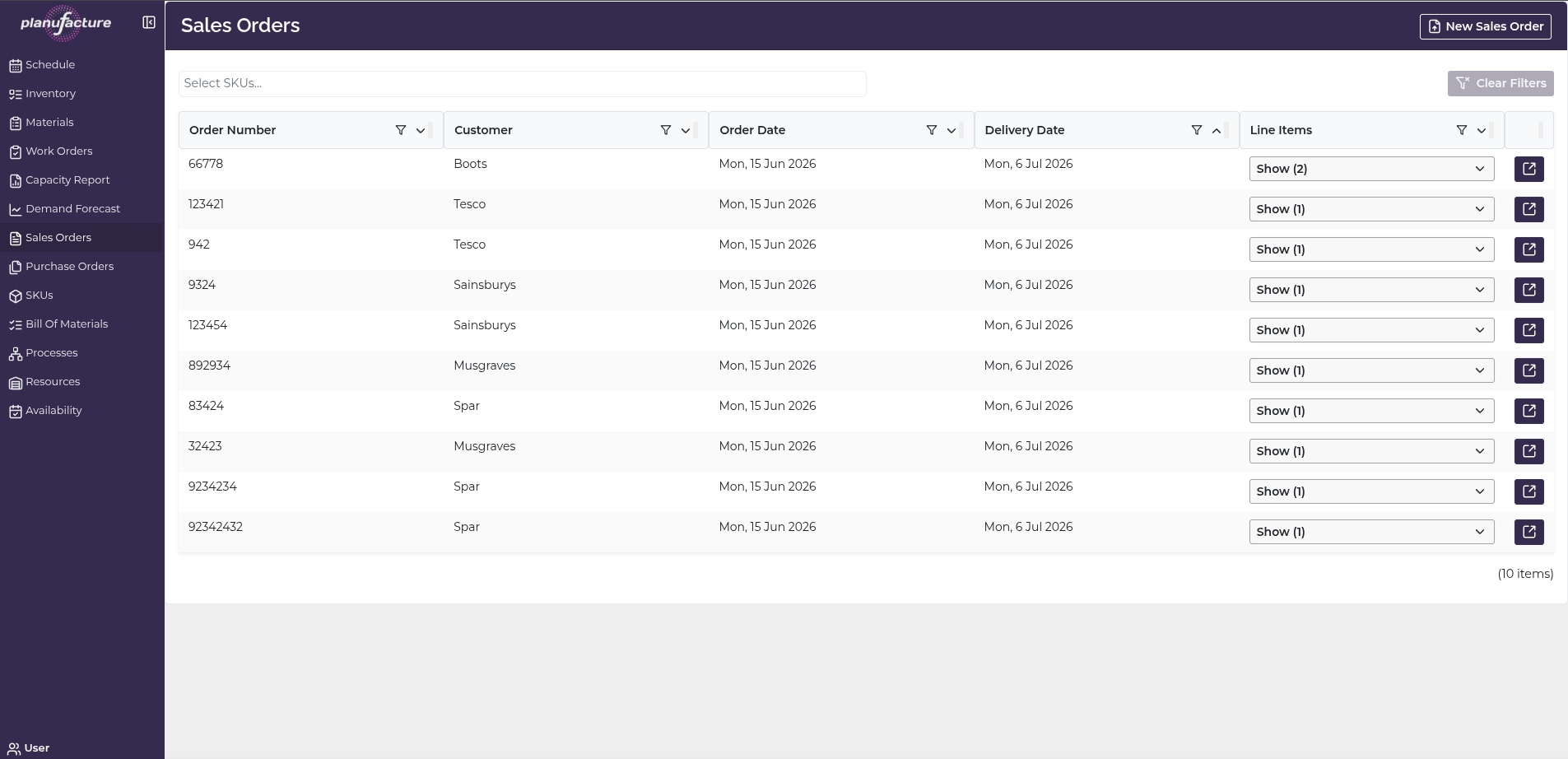
Overview
- List of all sales orders with customer and date information
- Line items showing products and quantities ordered
- Expandable rows to view order details
- Order details view for individual sales orders
Top Bar Controls
SKU Filter
Select SKUs dropdown:
- Filter sales orders by product
- Search box to find specific SKUs
- Select multiple SKUs
- Shows only orders containing selected products
Actions
- Clear Filters: Reset all applied filters
- New Sales Order: Create a new customer order (top right button)
Sales Orders Table
Columns
- Order Number: Unique sales order identifier
- Customer: Customer name
- Order Date: Date order was placed
- Delivery Date: Expected delivery date
- Line Items: Dropdown showing number of items (e.g., "Show (1)", "Show (2)")
Sortable Columns
Most columns have sort icons allowing you to order by:
- Order Number
- Customer
- Order Date
- Delivery Date
- Line Items
Row Actions
Each sales order row has:
- Line Items dropdown: Expand to see products ordered
- Detail icon (right side): View full order details
Item Count
Bottom of table shows total (e.g., "11 items", "4 items")
Line Items Expansion
Click the Line Items dropdown (e.g., "Show (2)") to expand and see:
- Product descriptions with quantities
- Example: "6x24 16cm Soft White Tortillas (144s) (50)"
- Example: "12x700g Lightly Salted 1.8% Fried Tortilla Crisps (100)"
Shows SKU descriptions and quantities ordered inline within the table.
Sales Order Details View
Click the detail icon to view full order information:
Page Header:
- Title: "Sales Order"
- Back to Sales Orders button: Return to list
Order Header Information
- Order Number: Sales order ID
- Date Ordered: Order placement date
- Customer Name: Customer name
- Expected Delivery: Delivery date
Line Items Table
Columns:
- SKU: Product code
- SKU Name: Product description
- Quantity: Amount ordered
- UOM: Unit of measure (e.g., Case)
Features:
- Sortable columns
- Clear Filters button
- Shows all products on the order
Common Workflows
Viewing All Sales Orders
- Navigate to Sales Orders
- Review table of all orders
- Sort by Delivery Date to see upcoming deliveries
- Or sort by Customer to group by customer
Filtering by Product
- Click Select SKUs dropdown
- Choose specific product(s)
- Table shows only orders containing those SKUs
- Useful for production planning by product
Checking Order Line Items
- Locate sales order in table
- Click Line Items dropdown (e.g., "Show (2)")
- Dropdown expands to show products and quantities
- Quick view without leaving the table
Viewing Full Order Details
- Click Detail icon on sales order row
- Sales Order detail page opens
- Review:
- Order Number
- Date Ordered
- Customer Name
- Expected Delivery
- See complete line items table with SKU, Name, Quantity, UOM
- Click Back to Sales Orders to return
Creating a New Sales Order
- Click New Sales Order button (top right)
- Enter customer and order details
- Add line items with SKUs and quantities
- Save the order
Sorting Sales Orders
- Click sort icon in any column header
- Sort ascending or descending
- Useful for:
- Finding earliest/latest delivery dates
- Grouping by customer
- Ordering by order number
Understanding Sales Orders
Sales orders drive:
- Demand: Create demand for finished goods
- Production planning: Work orders scheduled to fulfill sales orders
- Inventory allocation: Stock reserved for specific orders
- Delivery scheduling: Logistics planning based on delivery dates
Order fulfillment:
- Sales orders create demand in the system
- Demand drives production scheduling
- Work orders produce goods to fulfill sales orders
- Inventory allocated and shipped to meet delivery dates
Tips
- Sort by Delivery Date to prioritize upcoming shipments
- Use Select SKUs filter to see all orders for a specific product
- Expand Line Items for quick product visibility without opening details
- Detail view provides complete order information for customer service
- Monitor orders approaching delivery dates to ensure on-time fulfillment
- Use sales order data to inform production and inventory planning
- Clear Filters to reset and see all orders
- Track order count at bottom to understand order volume
Related
- Demand Forecast: Sales orders contribute to actual demand vs. forecast
- Schedule: Production scheduled to meet sales order delivery dates
- Work Orders: Created to produce goods for sales orders
- Inventory: Stock allocated to fulfil sales orders
- Batch Trace: Track which batches were shipped to which customers