Resources
Resources manages production equipment and lines, including availability patterns, changeover times, and organisational attributes.
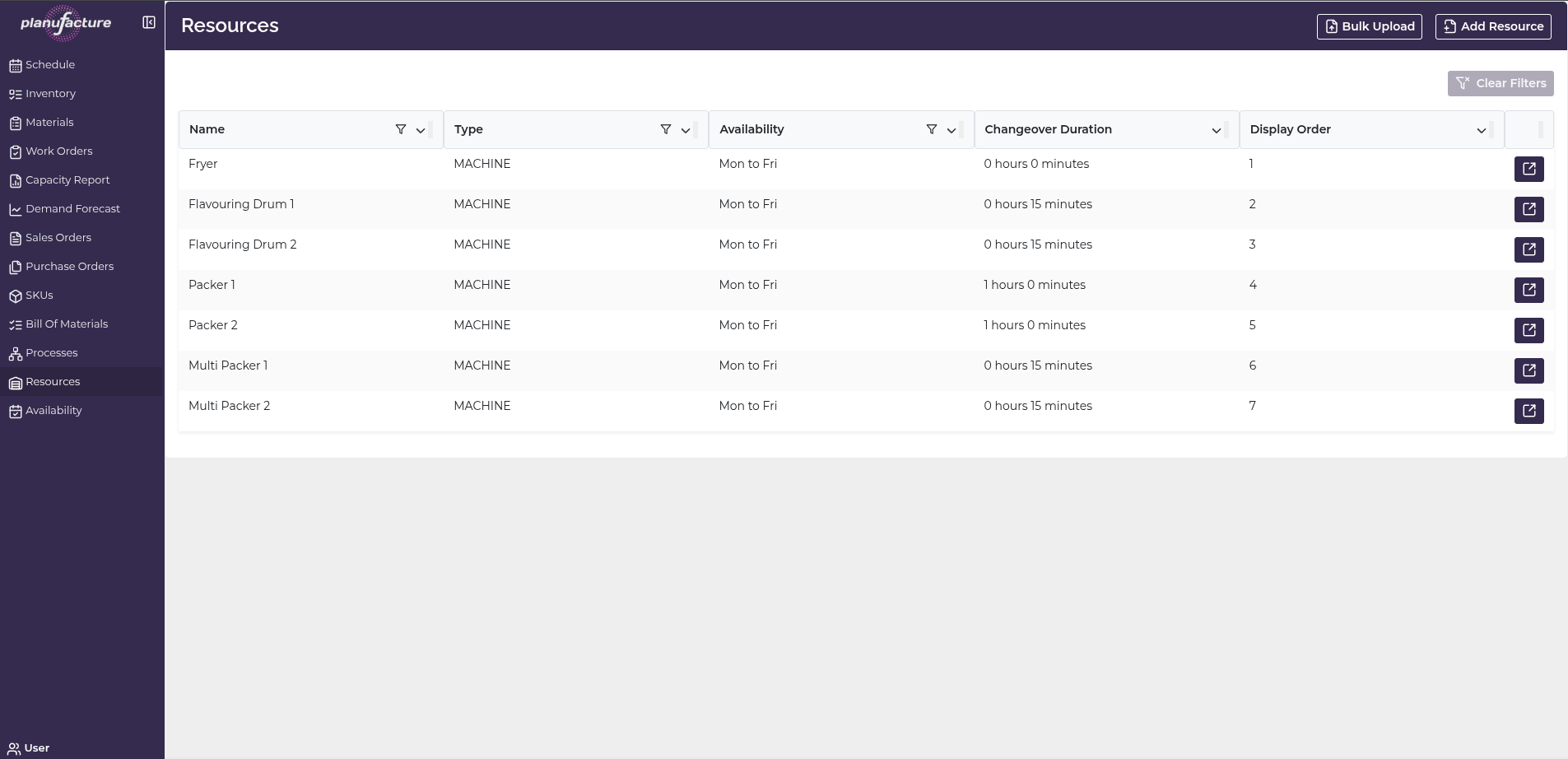
Overview
- List of all production resources (machines, lines, equipment)
- Resource configuration including type and availability
- Changeover durations for setup times
- Display order for scheduling views
- Bulk upload capability for multiple resources
Top Bar Controls
Actions
- Bulk Upload: Import multiple resources from file
- Add Resource: Create new resource manually
- Clear Filters: Reset all applied filters
Resources Table
Columns
- Name: Resource name/identifier
- Type: Resource type (e.g., MACHINE)
- Availability: Availability pattern name (e.g., "Mon to Fri")
- Changeover Duration: Setup/changeover time between work orders
- Display Order: Numeric order for display in schedules
Sortable Columns
All columns have sort icons allowing you to order by:
- Name
- Type
- Availability
- Changeover Duration
- Display Order
Row Actions
Each resource row has a detail icon (right side) to view and edit resource details.
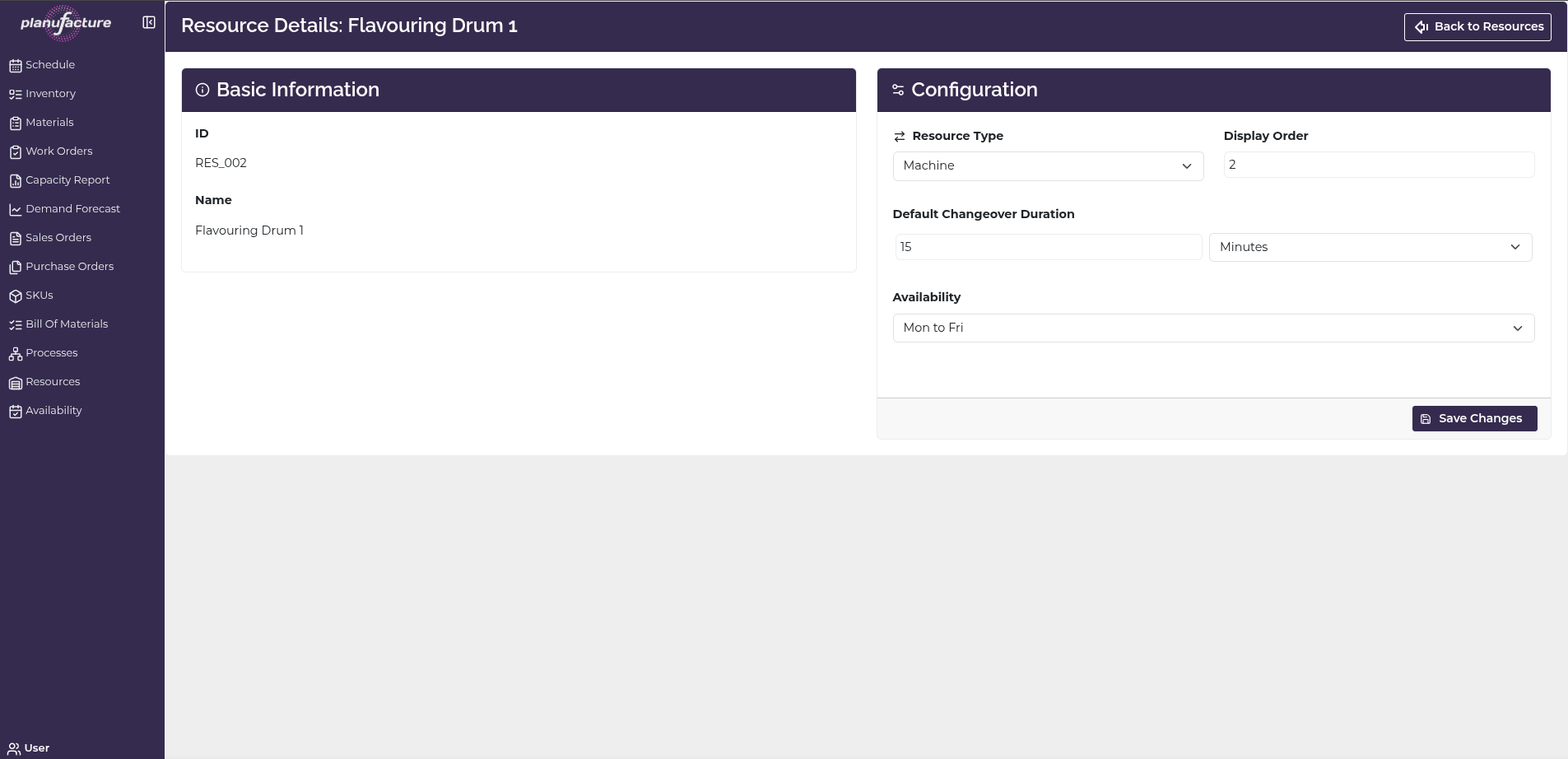
Resource Details View
Click the detail icon to view and edit resource configuration:
Page Header:
- Title: "Resource Details: [Resource Name]"
- Back to Resources button: Return to list
Basic Information Section
Fields:
- ID: Resource identifier (display only)
- Name: Resource name (display only)
Configuration Section
Resource Type:
- Dropdown selector (e.g., Machine)
Display Order:
- Numeric value for ordering in schedules
Default Changeover Duration:
- Time value with unit dropdown (Minutes)
- Setup time between work orders
Availability:
- Dropdown selector (e.g., "Mon to Fri")
- Links to availability pattern
Save Changes button: Apply modifications
Add New Resource
Click Add Resource to create a new resource:
Page Header:
- Title: "Add New Resource"
- Back button: Return to resources list
Fields:
- Resource ID: Enter unique resource ID
- Resource Name: Enter resource name
- Resource Type: Dropdown (e.g., Machine)
- Display Order: Numeric value (e.g., 0)
- Default Changeover Duration: Time value with unit dropdown (Minutes)
- Availability: Dropdown (e.g., "Not Selected")
- Category: Dropdown (e.g., "No Category")
- Location: Dropdown (e.g., "No Location")
- Warehouse: Dropdown (e.g., "No Warehouse")
Save Resource button: Create the resource
Bulk Upload Resources
Click Bulk Upload to import multiple resources:
4-step wizard:
Step 1: File Upload
Upload your current Data File
- Drag and drop area
- Or click to select a file
- Next button to proceed
Step 2: Select Data
Select the data you would like to import
Select Sheet:
- Dropdown to choose worksheet (e.g., "Resources")
Preview: Table showing imported data:
- ID: Resource IDs
- Name: Resource names
- Type: Resource types (MACHINE)
- Availability: Availability patterns (Mon to Fri)
- Changeover: Changeover durations (0 mins, 15 mins, 60 mins)
- Display Order: Display order values
Buttons:
- Prev: Go back
- Next: Continue
Step 3: Map Fields
Field mapping options
Map Required Fields:
System Fields → Your Data Fields
- Resource Id: Dropdown to select field
- Name: Dropdown to select field
- Type: Dropdown to select field
Buttons:
- Prev: Go back
- Next: Continue
Step 4: Preview
Preview
Table showing resources to be imported:
- Resource Id: IDs (e.g., RES_001, RES_002, RES_003...)
- Name: Names (e.g., Fryer, Flavouring Drum 1, Flavouring Drum 2...)
- Type: Types (MACHINE)
Buttons:
- Prev: Go back to edit
- Save Resources: Import the resources
Common Workflows
Viewing All Resources
- Navigate to Resources
- Review table of all production resources
- Sort by Name alphabetically
- Or sort by Display Order to see schedule order
Editing Resource Configuration
- Click detail icon on resource row
- Resource Details page opens
- Modify:
- Resource Type
- Display Order
- Default Changeover Duration
- Availability pattern
- Click Save Changes
Adding a Single Resource
- Click Add Resource button
- Enter:
- Resource ID (unique identifier)
- Resource Name
- Resource Type
- Display Order
- Default Changeover Duration
- Availability pattern
- Category, Location, Warehouse (optional)
- Click Save Resource
Bulk Uploading Resources
- Prepare file with resource data (ID, Name, Type, Availability, Changeover, Display Order)
- Click Bulk Upload button
- Step 1: Upload file
- Step 2: Select worksheet and preview data
- Step 3: Map fields (Resource Id, Name, Type)
- Step 4: Preview and click Save Resources
Setting Changeover Times
- Open resource details
- Set Default Changeover Duration
- Specify time in minutes
- System adds this time between work orders on schedule
- Useful for:
- Cleaning time
- Setup time
- Tool changes
- Product changeovers
Assigning Availability Patterns
- Open resource details
- Select Availability dropdown
- Choose availability pattern (e.g., "Mon to Fri")
- Pattern defines when resource is operational
- Schedule respects availability constraints
Understanding Resource Configuration
Resource Type:
- Categorizes resources (e.g., Machine, Line, Equipment)
- Used for filtering and reporting
Display Order:
- Controls order in schedule views
- Lower numbers appear first
- Helps organize schedule visually
Changeover Duration:
- Time required between work orders
- Added automatically by scheduler
- Prevents back-to-back scheduling without setup time
Availability:
- Links to availability pattern
- Defines operational hours/days
- System only schedules during available times
Category, Location, Warehouse:
- Organizational attributes
- Help categorize and filter resources
- Optional fields
Tips
- Sort by Display Order to see resources in schedule order
- Set Changeover Duration to realistic setup times
- Use Availability patterns to model shifts, maintenance windows, and downtime
- Display Order should reflect logical production flow
- Bulk Upload is efficient for initial setup or updates
- Resource Type helps organize and filter resources
- Category/Location/Warehouse useful for multi-site operations
- Keep Resource IDs consistent and meaningful
- Review changeover times periodically to ensure accuracy
Related
- Schedule: Resources appear as rows in the schedule timeline
- Processes: Process configurations specify which resources can run which processes
- Work Orders: Work orders assigned to resources
- Capacity Report: Resource utilisation calculated based on availability and work orders
- Availability: Availability patterns define when resources are operational