Purchase Orders
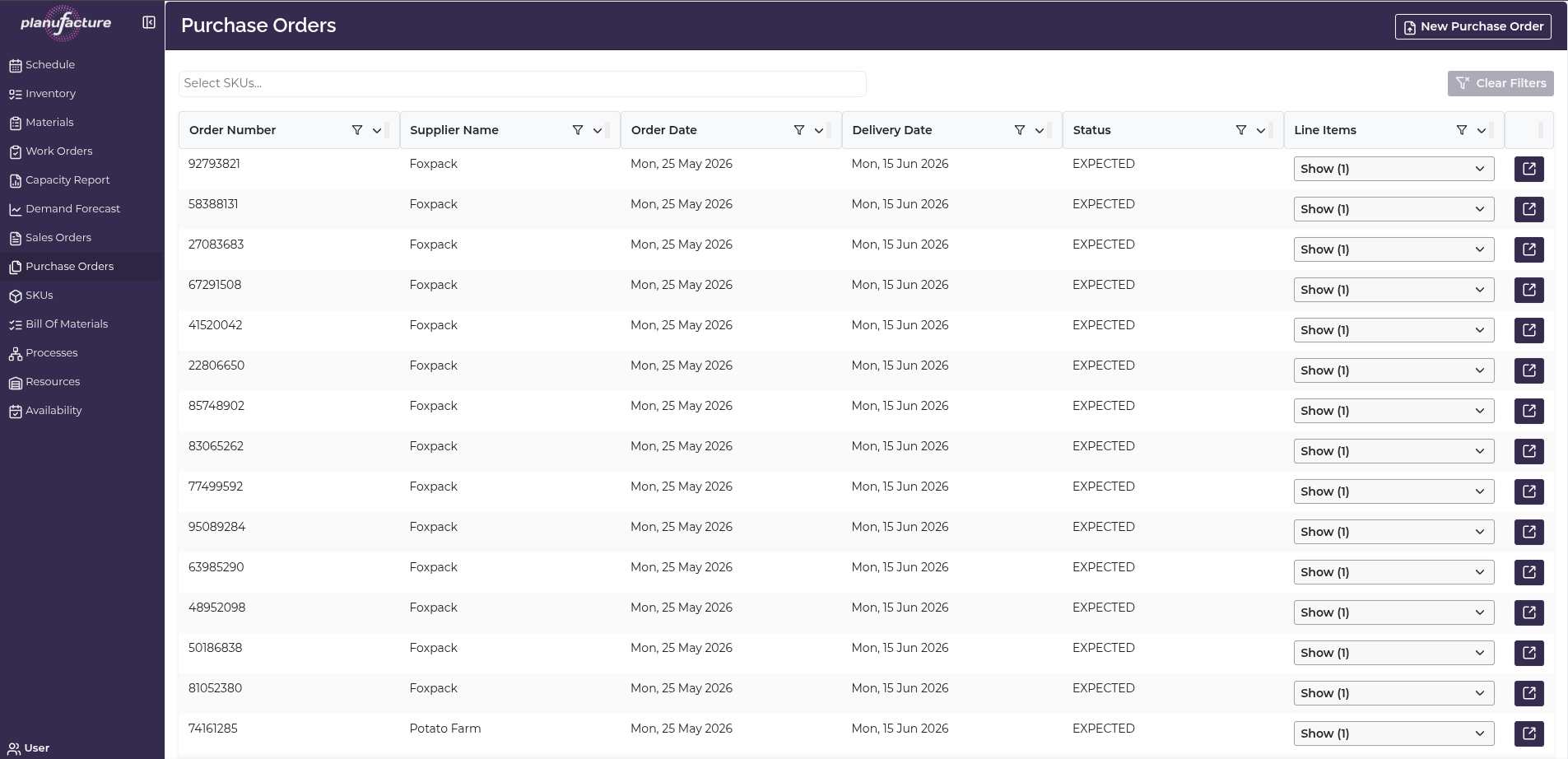
Purchase Orders displays supplier orders for raw materials and packaging, tracking delivery dates and order status.
Overview
- List of all purchase orders with supplier and date information
- Line items showing materials and quantities ordered
- Expandable rows to view order details
- Order details view for individual purchase orders
- Status tracking (COMPLETED, etc.)
Top Bar Controls
SKU Filter
Select SKUs dropdown:
- Filter purchase orders by material/SKU
- Search box to find specific materials
- Select multiple SKUs
- Shows only orders containing selected materials
Actions
- Clear Filters: Reset all applied filters
- New Purchase Order: Create a new supplier order (top right button)
Purchase Orders Table
Columns
- Order Number: Unique purchase order identifier
- Supplier Name: Supplier/vendor name
- Order Date: Date order was placed
- Delivery Date: Expected delivery date
- Status: Order status (e.g., COMPLETED)
- Line Items: Dropdown showing number of items (e.g., "Show (1)", "Show (5)", "Show (7)")
Sortable Columns
Most columns have sort icons allowing you to order by:
- Order Number
- Supplier Name
- Order Date
- Delivery Date
- Status
- Line Items
Row Actions
Each purchase order row has:
- Line Items dropdown: Expand to see materials ordered
- Detail icon (right side): View full order details
Line Items Expansion
Click the Line Items dropdown (e.g., "Show (5)") to expand and see:
- Material descriptions with quantities
- Example: "11.5cm (4.5") box plain (1,000)"
- Example: "10cm (6") box printed (8,000)"
- Example: "20cm (8") box plain (2,000)"
- Example: "25cm (10") box plain (2,000)"
- Example: "14 pack plain (15kg) (3,000)"
Shows SKU descriptions and quantities ordered inline within the table.
Purchase Order Details View
Click the detail icon to view full order information:
Page Header:
- Title: "Purchase Order"
- Back to Purchase Orders button: Return to list
Order Header Information
- Order Number: Purchase order ID
- Status: Order status (e.g., COMPLETED)
- Supplier: Supplier name
- Delivery Date: Expected delivery date
Line Items Table
Columns:
- SKU ID: Material/product code
- SKU Name: Material description
- Quantity: Amount ordered
- UOM: Unit of measure (e.g., Each)
Example line items:
- SP-452-21-01: 11.5cm (4.5") box plain - 1,000 Each
- SP-453-21-01: 10cm (6") box printed - 8,000 Each
- SP-454-21-01: 20cm (8") box plain - 2,000 Each
- SP-455-21-01: 25cm (10") box plain - 2,000 Each
- SP-456-72-01: 14 pack plain (15kg) - 3,000 Each
Common Workflows
Viewing All Purchase Orders
- Navigate to Purchase Orders
- Review table of all orders
- Sort by Delivery Date to see upcoming deliveries
- Or sort by Supplier Name to group by vendor
Filtering by Material
- Click Select SKUs dropdown
- Choose specific material(s)
- Table shows only orders containing those materials
- Useful for tracking specific material deliveries
Checking Order Line Items
- Locate purchase order in table
- Click Line Items dropdown (e.g., "Show (5)")
- Dropdown expands to show materials and quantities
- Quick view without leaving the table
Viewing Full Order Details
- Click Detail icon on purchase order row
- Purchase Order detail page opens
- Review:
- Order Number
- Status
- Supplier
- Delivery Date
- See complete line items table with SKU ID, Name, Quantity, UOM
- Click Back to Purchase Orders to return
Creating a New Purchase Order
- Click New Purchase Order button (top right)
- Select supplier
- Add line items with materials and quantities
- Set delivery date
- Save the order
Sorting Purchase Orders
- Click sort icon in any column header
- Sort ascending or descending
- Useful for:
- Finding earliest/latest delivery dates
- Grouping by supplier
- Ordering by status
Monitoring Order Status
- Review Status column
- Track which orders are COMPLETED
- Identify pending or in-transit orders
- Follow up on delayed deliveries
Understanding Purchase Orders
Purchase orders drive:
- Material supply: Ensure materials available for production
- Inventory receipts: Incoming stock from suppliers
- Material planning: Coordinate with production schedules
- Supplier management: Track vendor performance and deliveries
Order fulfillment:
- Purchase orders placed with suppliers
- Materials shipped and delivered
- Receipts recorded in inventory
- Materials available for production work orders
Tips
- Sort by Delivery Date to prioritize incoming shipments
- Use Select SKUs filter to track specific material deliveries
- Expand Line Items for quick material visibility without opening details
- Detail view provides complete order information for receiving and verification
- Monitor orders approaching delivery dates to prepare for receiving
- Track Status to ensure timely deliveries
- Use purchase order data to coordinate with production planning
- Clear Filters to reset and see all orders
- Group by Supplier Name to manage vendor relationships
Related
- Materials: Purchase orders increase projected material availability
- Inventory: Receipts from POs update inventory levels
- Work Orders: Material availability from POs enables production scheduling
- Schedule: Coordinate material deliveries with production timeline
- Batch Trace: Track material lots from suppliers through production