Processes
Processes manages production process definitions, including batch parameters, resource configurations, and production network relationships.
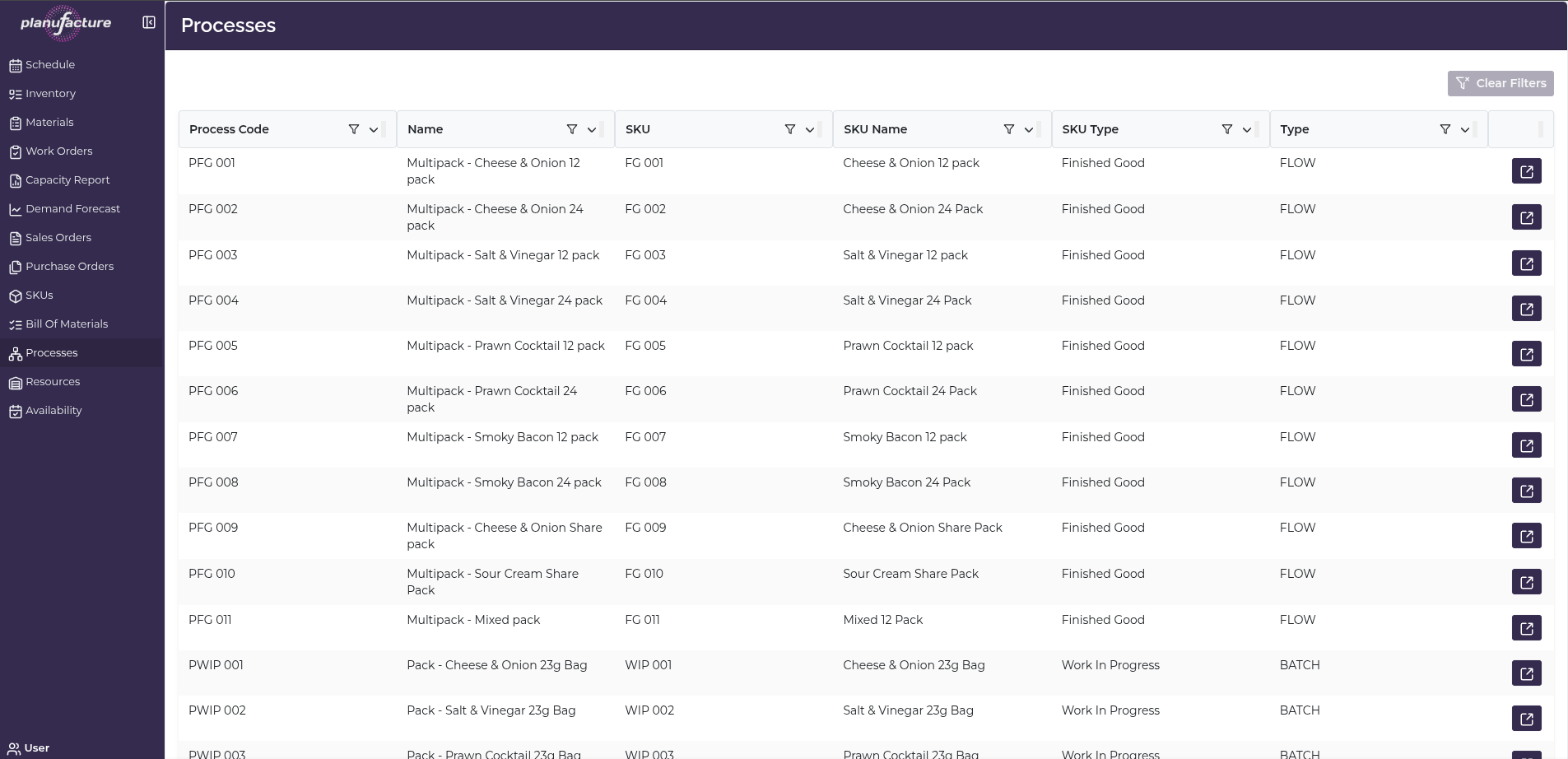
Overview
- List of all production processes with associated products
- Process configuration including batch parameters and timing
- Resource assignments and capacity settings
- Production network showing process relationships
- Stepped processes for multi-stage production
Top Bar Controls
Actions
- Clear Filters: Reset all applied filters
Processes Table
Columns
- Process Code: Unique process identifier
- Name: Full process description
- SKU: Output product code
- SKU Name: Output product description
- SKU Type: Product type (e.g., Work In Progress, Finished Good)
- Type: Process type (e.g., BATCH)
Sortable Columns
All columns have sort icons allowing you to order by:
- Process Code
- Name
- SKU
- SKU Name
- SKU Type
- Type
Row Actions
Each process row has a detail icon (right side) to view full process details.
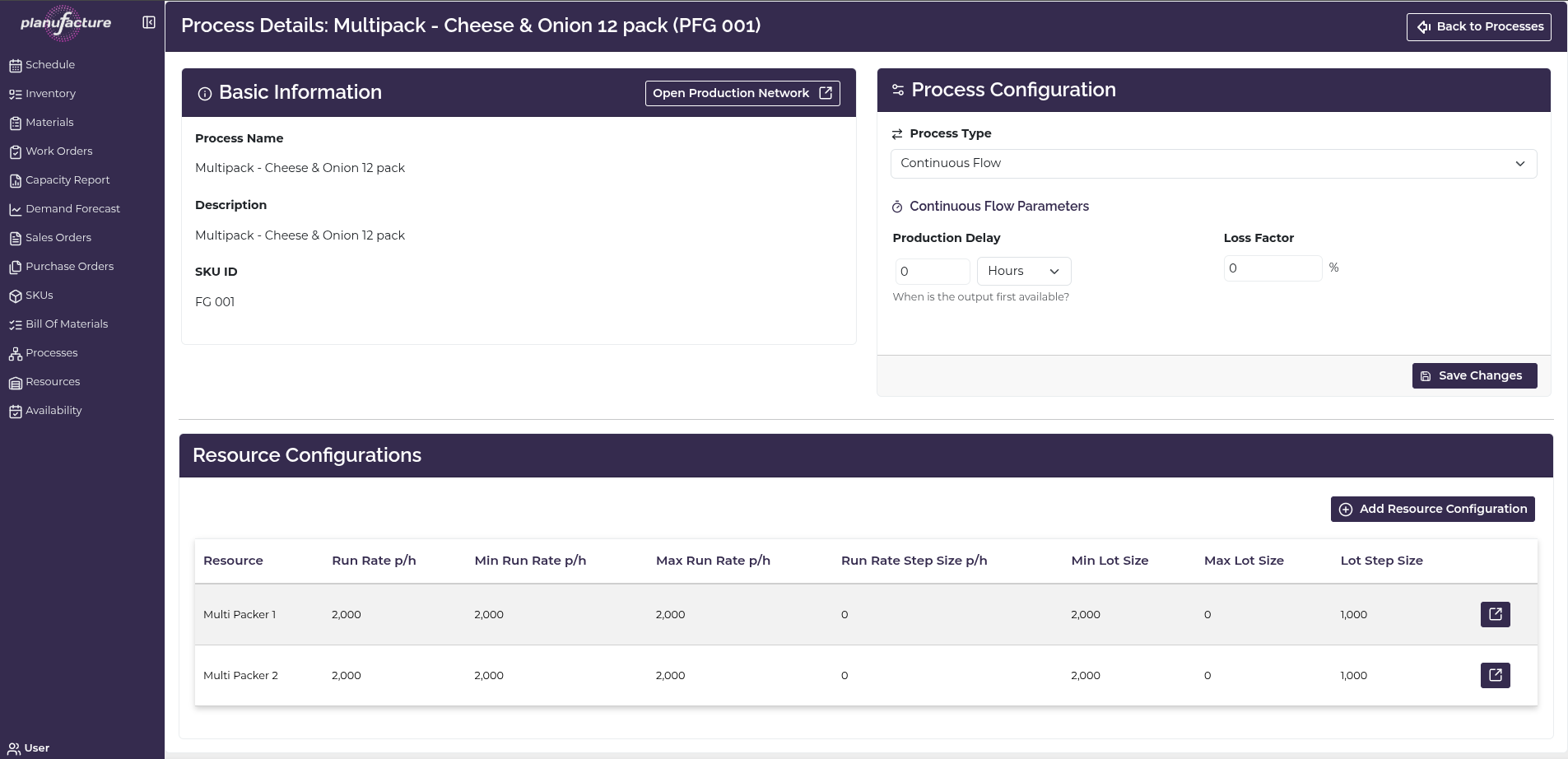
Process Details View
Click the detail icon to view and edit process configuration:
Page Header:
- Title: "Process Details: [Process Name] ([Process Code])"
- Back to Processes button: Return to list
Basic Information Section
Open Production Network button: View production network for this process
Fields:
- Process Name: Full process description (display only)
- Description: Additional process details
- SKU ID: Output product code
Process Configuration Section
Tabs:
- Config: Process parameters and settings
- Steps: Multi-stage process configuration (for stepped processes)
Config Tab
Process Type:
- Dropdown selector (e.g., Batch)
Batch Parameters:
Infill Rate (Kg):
- Quantity: Amount (numeric input)
- Duration: Time value with unit dropdown (Hours)
Outfill Rate (Kg):
- Quantity: Amount (numeric input)
- Duration: Time value with unit dropdown (Hours)
Duration:
- Time value with unit dropdown (Hours)
- "Duration of the batch process"
Availability Delay:
- Time value with unit dropdown (Hours)
- Delay before output is available
Loss Factor:
- Percentage value (%)
- Material loss during production
Checkbox:
- Reserved Until Empty: Hold resources until process completes
Save Changes button: Apply modifications
Steps Tab
For stepped/multi-stage processes:
- Stepped Process indicator
- Shows process is composed of multiple steps
- Links to sub-processes
Resource Configurations Section
Add Resource Configuration button: Add new resource assignment
Resource Table Columns:
- Resource: Resource name
- Quantity p/h: Quantity per hour (throughput rate)
- Min Lot Size: Minimum batch size
- Max Lot Size: Maximum batch size
- Lot Step Size: Batch size increment
Features:
- Edit icon for each resource configuration
- Multiple resources can be configured for same process
Example configurations:
- Kettle: Quantity p/h: 0, Min: 700, Max: 0, Lot Step: 700
- 6 Row Oven: Quantity p/h: 30, Min: 0, Max: 0, Lot Step: 0
- Quad Oven: Quantity p/h: 30, Min: 0, Max: 0, Lot Step: 0
Production Network View
Click Open Production Network to see process relationships:
Page Header:
- Title: "Production Network for: [Process Code] - [Process Name]"
- Back to Process Details button: Return to details
View Options
Filters:
- Show All SKUs: Show all products in network
- Finished/WIP Only: Filter to finished goods and work in progress
- Show Primary Alternates Only: Show only primary production paths
View Tabs
Tree Tab
Hierarchical view of production relationships:
Columns:
- ID: Process/SKU code with hierarchical indentation
- Alternate: Alternate production path indicator
- Type: Product or process type
- BOM Amount: Bill of materials quantity
Features:
- Expandable/collapsible tree structure
- Shows parent-child relationships
- Collapse All / Show Lines buttons
Example structure:
└─ 003-21-22-99 - Baking-WIP Packing :: 5x3kg Pre Cut Frying Blue Tortillas (5x)
   └─ 003-02-02 - Blue Corn 15g Retail Frying Tortillas tray [1KG]
      └─ 003-03-02-02 - Baking-WIP Packing :: Blue Corn 15g Retail Frying Tortillas tray [1KG]
         └─ 02-02-02 - Blue Masa - Frying Blue RETAIL [208kg]
            └─ 002-02-02-02 - Mixing :: Blue Masa - Frying Blue RETAIL [208kg]
               └─ 01-02-01 - Blue Corn Cooked - Frying Blue [630kg]
                  └─ 001-01-02-01 - Cooking-Milling :: Blue Corn Cooked - Frying Blue [630kg]
Graph Tab
Visual network diagram:
Features:
- Node-based visualization
- Nodes represent processes and SKUs
- Connections show production flow
- Color-coded by type:
- Green: Process
- Blue: SKU
- Red: Alternate SKU/Downgraded
- Other colors: Different types
Legend:
- Process
- SKU
- Alternate SKU
- Downgraded
- Output
- Input
Controls:
- Compressed: Toggle view density
- Drag to pan, hover to view inputs and outputs
Common Workflows
Viewing All Processes
- Navigate to Processes
- Review table of all production processes
- Sort by Process Code to see processes in order
- Or sort by SKU to group by output product
Editing Process Configuration
- Click detail icon on process row
- Process Details page opens
- Select Config tab
- Modify:
- Process Type
- Batch Parameters (Infill/Outfill rates)
- Duration
- Availability Delay
- Loss Factor
- Reserved Until Empty setting
- Click Save Changes
Configuring Resources
- In Process Details, scroll to Resource Configurations
- Click Add Resource Configuration to add new resource
- Or click edit icon on existing resource
- Set:
- Resource
- Quantity p/h (throughput)
- Min Lot Size
- Max Lot Size
- Lot Step Size
- Save configuration
- Multiple resources allow process to run on different lines
Understanding Production Network
- From Process Details, click Open Production Network
- Select Tree tab for hierarchical view
- See how process fits in production flow:
- Input materials (bottom level)
- Intermediate processes (middle levels)
- Final products (top level)
- Identify upstream and downstream dependencies
Visualizing Process Flow
- In Production Network, select Graph tab
- View visual network diagram
- Follow flow from inputs through processes to outputs
- Identify:
- Material inputs
- Process steps
- Intermediate products
- Final outputs
Managing Stepped Processes
- Open process details for multi-stage process
- Select Steps tab
- View Stepped Process indicator
- Process is composed of multiple sub-processes
- Each step has its own configuration
Understanding Process Parameters
Batch Parameters:
- Infill Rate: How quickly materials are loaded (Quantity/Duration)
- Outfill Rate: How quickly products are unloaded (Quantity/Duration)
- Duration: Total process time
- Availability Delay: Time before output is available for next step
Resource Configuration:
- Quantity p/h: Throughput rate (units per hour)
- Min Lot Size: Smallest batch that can be run
- Max Lot Size: Largest batch that can be run
- Lot Step Size: Batch size must be multiple of this value
Loss Factor:
- Percentage of material lost during production
- System adjusts material requirements accordingly
Reserved Until Empty:
- If checked, resource is locked until process completes
- Prevents resource from being used for other work orders
Tips
- Sort by Process Code to see processes in logical order
- Sort by SKU to group processes by output product
- Configure multiple resources to allow process flexibility
- Set Min/Max Lot Size to enforce batch size constraints
- Use Lot Step Size for processes with fixed batch increments
- Duration drives schedule timing and capacity calculations
- Loss Factor ensures correct material allocation
- Production Network shows how processes connect
- Tree view is best for detailed process analysis
- Graph view is best for visualizing overall production flow
- Stepped processes allow complex multi-stage production modeling
Related
- BOMs: Processes linked to bill of materials
- SKUs: Processes produce specific output SKUs
- Resources: Resource configurations define which lines can run a process
- Work Orders: Work orders execute processes
- Schedule: Processes scheduled on assigned resources
- Materials: Material requirements based on process BOMs and loss factors
- Capacity Report: Process duration and resource assignments drive capacity