Inventory
Inventory provides visibility into stock levels, projected inventory, and stock movements over time.
Overview
- Current Stock: Real-time on-hand quantities
- Days Cover: Projected stock coverage based on demand
- Stock Projections: Future inventory levels over time
- Filtering: View by SKU type, date range, and include options
View Tabs
Current Stock Tab
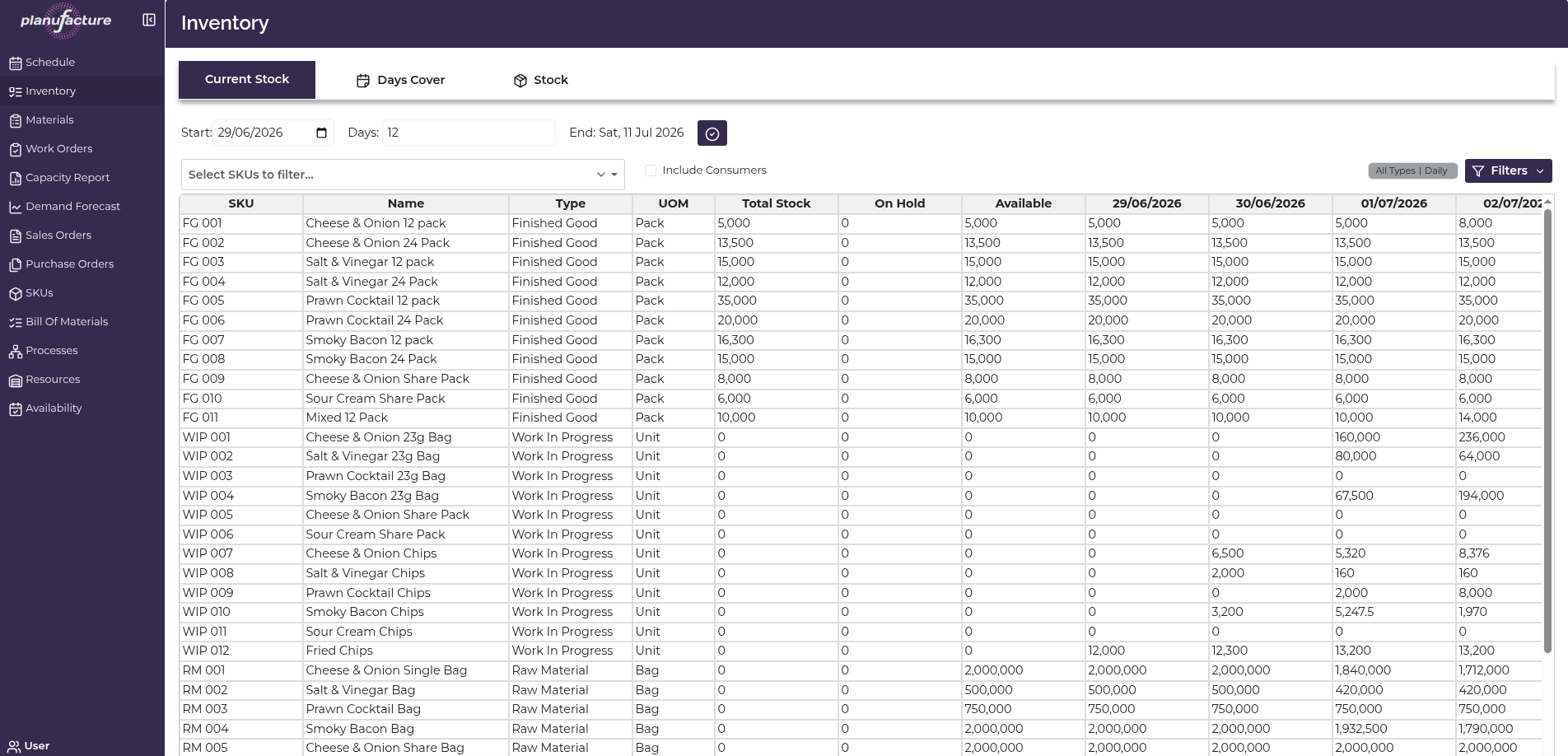
Shows current inventory levels with columns:
- SKU: Product code
- Name: Product description
- Type: Work In Progress, Finished Good, Raw Material, Package
- UOM: Unit of measure (Kg, Case, etc.)
- Total Stock: Current on-hand quantity
- On Hold: Quantity reserved or held
- Available: Total Stock minus On Hold
- Date Columns: Projected stock levels by date (e.g., 15/06/2026, 16/06/2026, 17/06/2026...)
Days Cover Tab
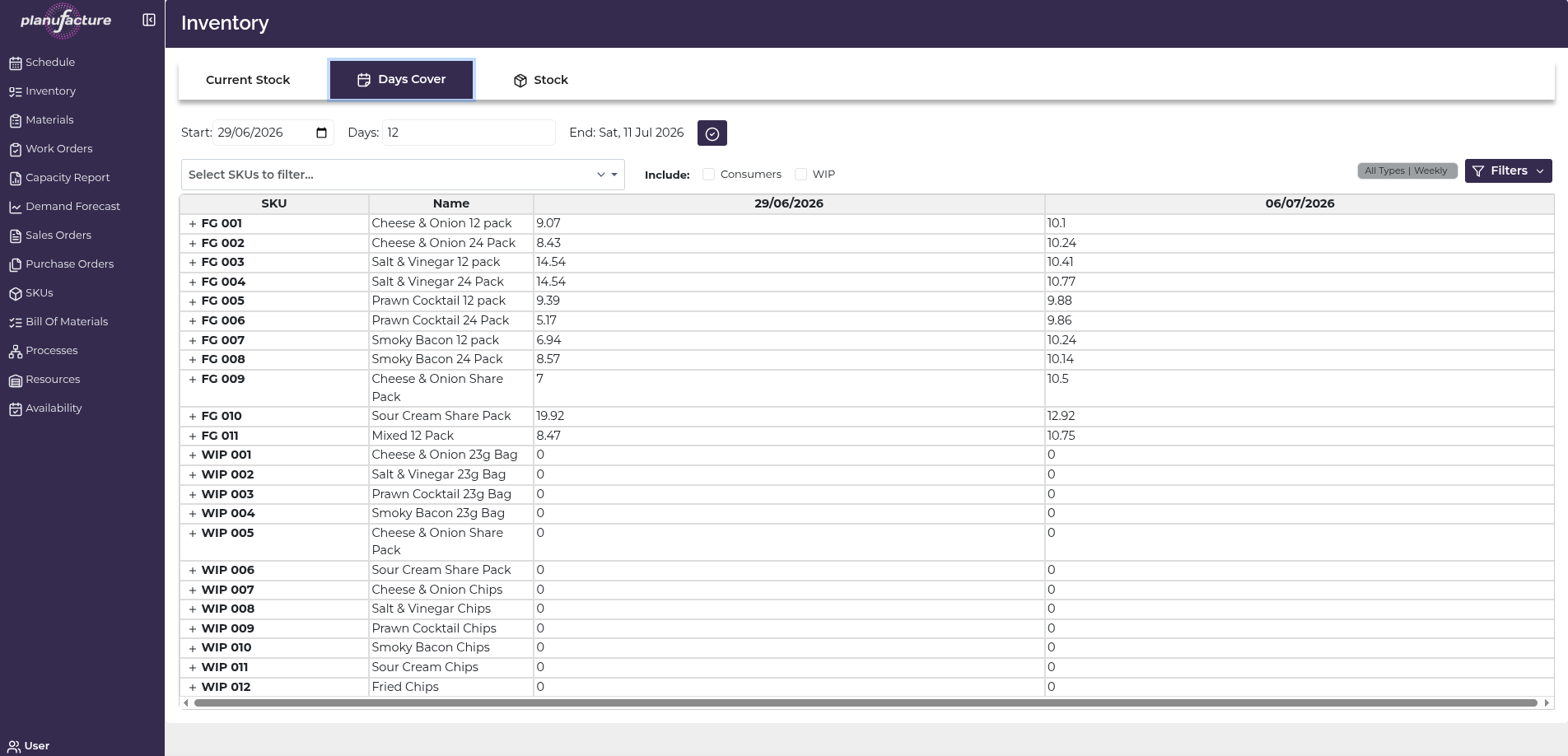
Shows inventory coverage in days:
- SKU: Product code
- Name: Product description
- Date Columns: Number of days of coverage at each date
- Helps identify when stock will run out
- Shows "-" for items with no stock or no demand
Stock Tab
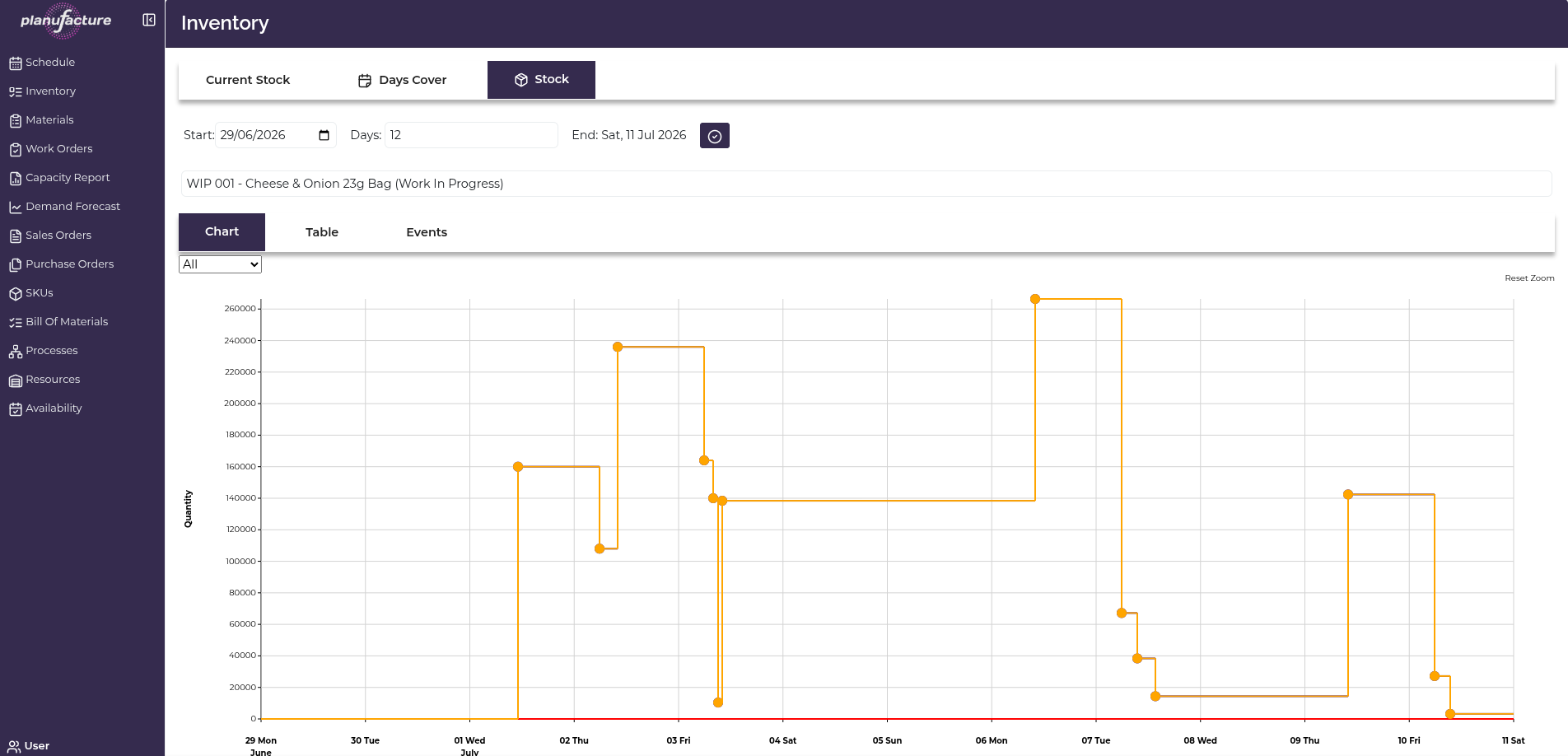
Detailed stock view for a selected SKU:
- Select SKU dropdown: Choose specific product to analyze
- Chart view: Visual graph of stock levels over time
- X-axis: Timeline (dates)
- Y-axis: Quantity
- Shows projected stock movements
- Red vertical line indicates current date
- Table view: Detailed stock events
- Events view: Stock transactions and movements
Date Range Controls
- Start: Beginning date for inventory view
- Days: Number of days to display (e.g., 28 days)
- End: Calculated end date
- Date picker with calendar interface
Filtering Options
Warehouses
Warehouses multi-select:
- Filter stock by one or more warehouses
- Shows all warehouses by default
SKU Filtering
Select SKUs to filter dropdown:
- Search box to find SKUs
- Shows SKU code and description
- Select multiple SKUs to view
- Checkbox selection
Include Options
- Consumers: Include consumer-facing products
- WIP: Include Work In Progress items
Filters Menu
SKU Types:
- All Types (default)
- Finished Good
- Raw Material
- Work In Progress
- Package
Horizon:
- Daily (default)
- Weekly
All Types | Daily button shows current filter selection
Common Workflows
Checking Current Stock Levels
- Navigate to Inventory
- Select Current Stock tab
- Use Select SKUs to filter to find specific products
- Review Total Stock, On Hold, and Available columns
- Check future date columns for projected levels
Reviewing Days Cover
- Select Days Cover tab
- Identify SKUs with low days of coverage
- Look for "-" or low numbers indicating potential stockouts
- Plan production or purchasing accordingly
Analyzing Stock Trends
- Select Stock tab
- Choose a SKU from the dropdown
- View the Chart to see stock trajectory
- Check for:
- Declining stock levels
- Stock-out events
- Replenishment patterns
- Switch to Table or Events for detailed transactions
Filtering by Product Type
- Click Filters button
- Under SKU Types, select desired type:
- Finished Good (end products)
- Raw Material (ingredients)
- Work In Progress (intermediate products)
- Package (packaging materials)
- Apply filter
- View filtered inventory
Changing Time Horizon
- Open Filters
- Under Horizon, select:
- Daily: Day-by-day view
- Weekly: Week-by-week aggregation
- Useful for longer-term planning
Understanding Stock Projections
The date columns show projected inventory based on:
- Current on-hand stock
- Planned production (work orders)
- Expected consumption (sales orders, work order requirements)
- Lead times and schedules
Interpreting values:
- Positive numbers: Expected stock on hand
- 0: Stock depleted
- "-": No stock or no activity
Tips
- Monitor Days Cover regularly to identify potential stockouts early
- Use Stock tab to analyze individual SKU trends and patterns
- Filter by type to focus on specific material categories
- Check On Hold quantities to understand reserved vs. truly available stock
- Adjust date range to see longer or shorter planning horizons
- Use Weekly horizon for high-level capacity planning