Batch Trace
Batch Trace provides lot-level traceability for inventory, showing batch/lot details and transaction history.
Overview
- Stock by SKU: View all SKUs with current stock levels
- Batches per SKU: Drill down to see individual lots/batches
- Batch Details: Detailed information for each batch
- Event History: Complete transaction history for traceability
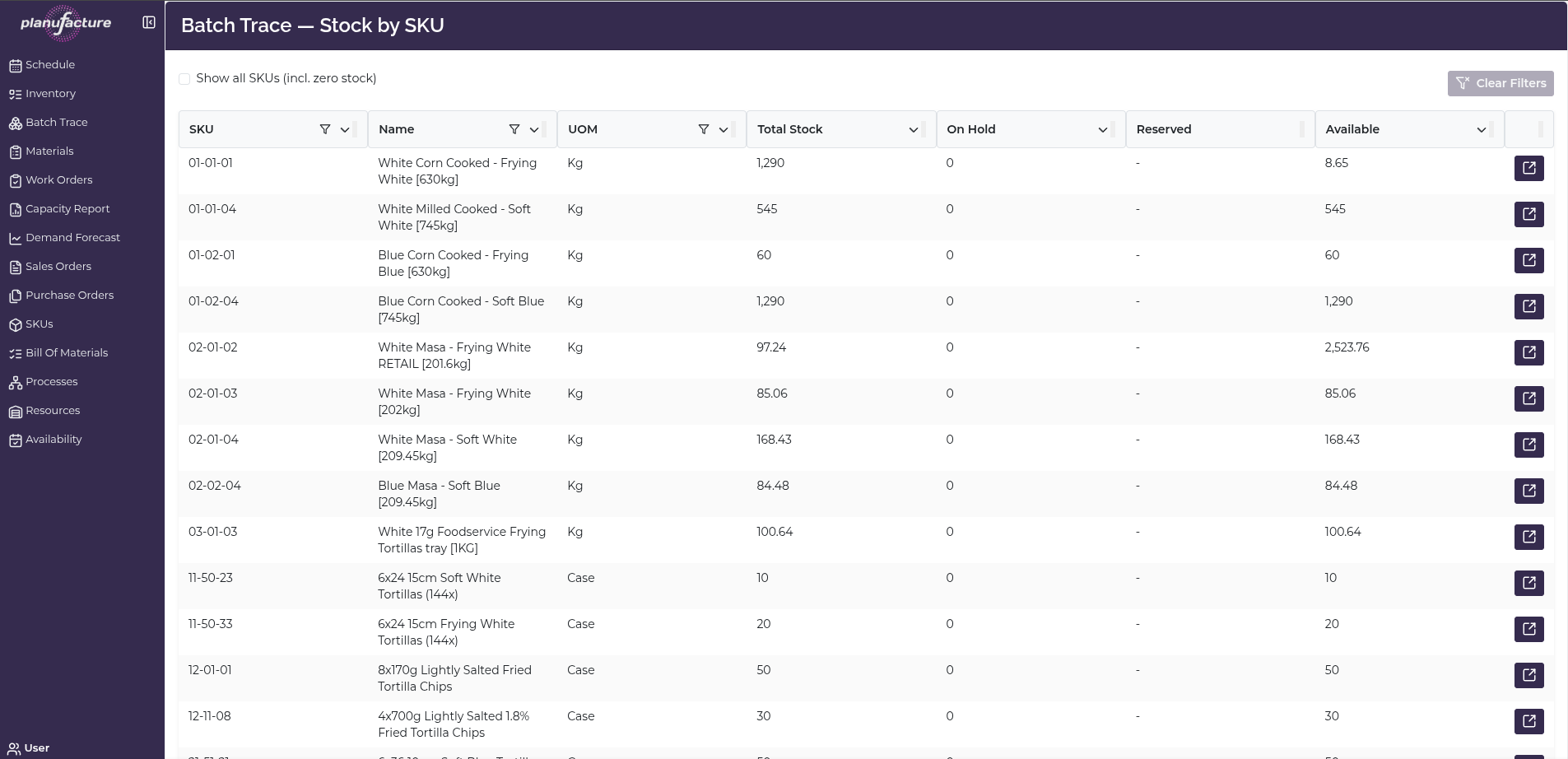
Main View: Stock by SKU
The initial view shows a table of all SKUs with stock:
Columns
- SKU: Product code
- Name: Product description
- UOM: Unit of measure (Kg, Case, etc.)
- Total Stock: Current on-hand quantity
- On Hold: Quantity reserved or held
- Reserved: Quantity allocated to work orders
- Available: Stock available for use
Filtering
- Show all SKUs (incl. zero stock): Checkbox to include SKUs with no inventory
- Clear Filters: Reset all filters
Actions
- Drill-down icon (right side of each row): Click to view batches for that SKU
Batches View

When you click on a SKU, you see all batches/lots for that product:
Page Header:
- Title: "Batches — [Product Name] [SKU]"
- Back to SKUs button: Return to main view
Warehouse Filter
- Dropdown: Filter batches by warehouse/location
- Options include:
- All warehouses
- Individual warehouse locations (e.g., "Blanco Niño: Code WH01")
- Multiple warehouse options available
Batch Options
- Show all batches (incl. closed & zero qty): Checkbox to include depleted or closed batches
- Clear Filters: Reset filters
Batch Table Columns
- Trace ID: Unique batch/lot identifier
- Warehouse: Storage location
- Quantity: Amount in this batch
- On Hold: Reserved quantity
- Available: Usable quantity
- Use By: Expiration or best-by date
Actions
- Drill-down icon: Click to view batch details and event history
- Item count displayed at bottom (e.g., "3 items")
Batch Details View
Clicking on a specific batch shows detailed information:
Page Header:
- Title: "Batch Details"
- Back to Batches button: Return to batches list
Batch Details Section
- Trace ID: Unique batch identifier
- Warehouse: Storage location
- Use By: Expiration date
- Quantity: Total batch quantity
- On Hold: Reserved amount
- Available: Available amount
Event History Section
Shows complete transaction history for the batch:
Table Columns:
- Time: Date and time of transaction
- Event: Type of transaction
- Opened (batch created)
- Produced (added to inventory)
- Withdrawn (consumed/used)
- Qty: Quantity change (positive for additions, negative for withdrawals)
- Balance: Running balance after transaction
- Reference: Related document/order number
- Comment: Additional notes
Features:
- Sortable columns (indicated by sort icons)
- Clear Filters button
- Item count at bottom (e.g., "5 items")
Common Workflows
Finding Stock for a SKU
- Navigate to Batch Trace
- Locate SKU in the table
- Review Total Stock, On Hold, Reserved, and Available
- Click drill-down icon to see individual batches
Checking Batch Expiration Dates
- Click on a SKU to view batches
- Review Use By column
- Identify batches approaching expiration
- Plan to use older batches first (FEFO - First Expired, First Out)
Filtering by Warehouse
- In batches view, click Warehouse dropdown
- Select specific warehouse location
- View only batches in that location
- Useful for multi-site operations
Tracing Batch History
- Click on a SKU to view batches
- Click drill-down icon on specific batch
- Review Event History section
- See complete audit trail:
- When batch was created (Opened)
- Production events (Produced)
- Consumption events (Withdrawn)
- Running balance over time
- Reference numbers for traceability
Including Zero Stock Items
- Check Show all SKUs (incl. zero stock) on main view
- Or check Show all batches (incl. closed & zero qty) in batches view
- Useful for historical research or recall scenarios
Traceability
The Event History provides full lot traceability:
- Forward tracing: See where a batch was used (Withdrawn events with references)
- Backward tracing: See when and how a batch was created (Produced events)
- Audit trail: Complete chronological record of all transactions
- References: Link to work orders, sales orders, or other documents
Tips
- Use Trace ID to quickly locate specific batches during recalls or quality investigations
- Monitor Use By dates to minimize waste and ensure FEFO compliance
- Review Event History for complete lot genealogy and compliance documentation
- Filter by Warehouse when managing inventory across multiple locations
- Check On Hold quantities to understand reserved vs. truly available stock
- Use batch-level visibility to support food safety and regulatory requirements
Compliance
Batch Trace supports:
- Lot traceability requirements for food safety
- Recall management with forward and backward tracing
- Audit trails for regulatory compliance
- FEFO management via Use By date tracking
- Quality investigations with complete event history