Availability
Availability manages time patterns that define when production resources are operational.
Overview
- List of availability patterns with descriptions
- Visual timeline showing operational hours by day
- Pattern creation with flexible time blocks
- Resource assignment to apply patterns
Top Bar Controls
Actions
- New Pattern: Create new availability pattern
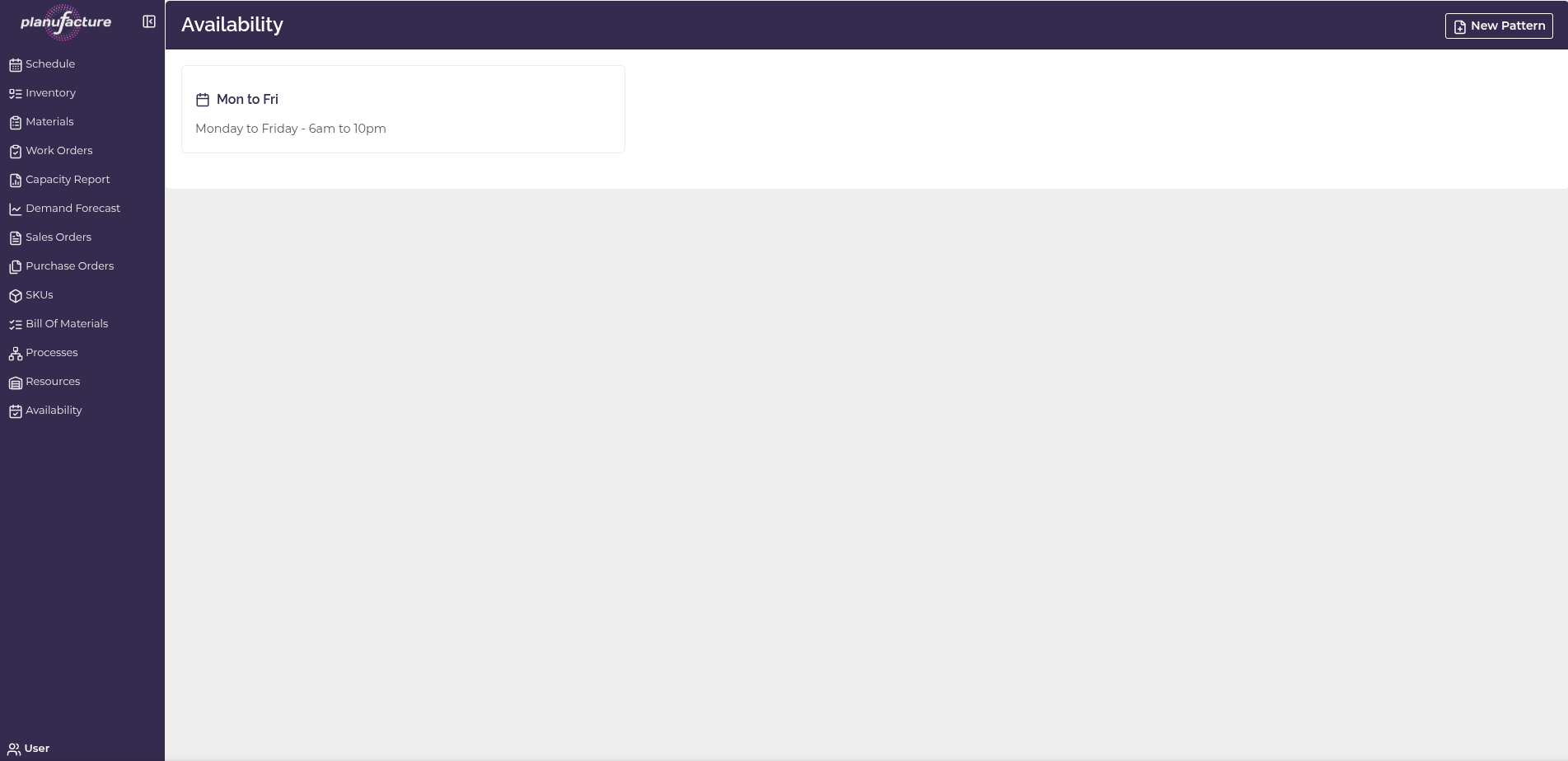
Availability Patterns List
Shows existing patterns:
- Pattern name (e.g., "Mon to Fri")
- Description (e.g., "Monday To Friday - 6am to 10pm")
Click on a pattern to view and edit its time blocks.
Pattern Details View
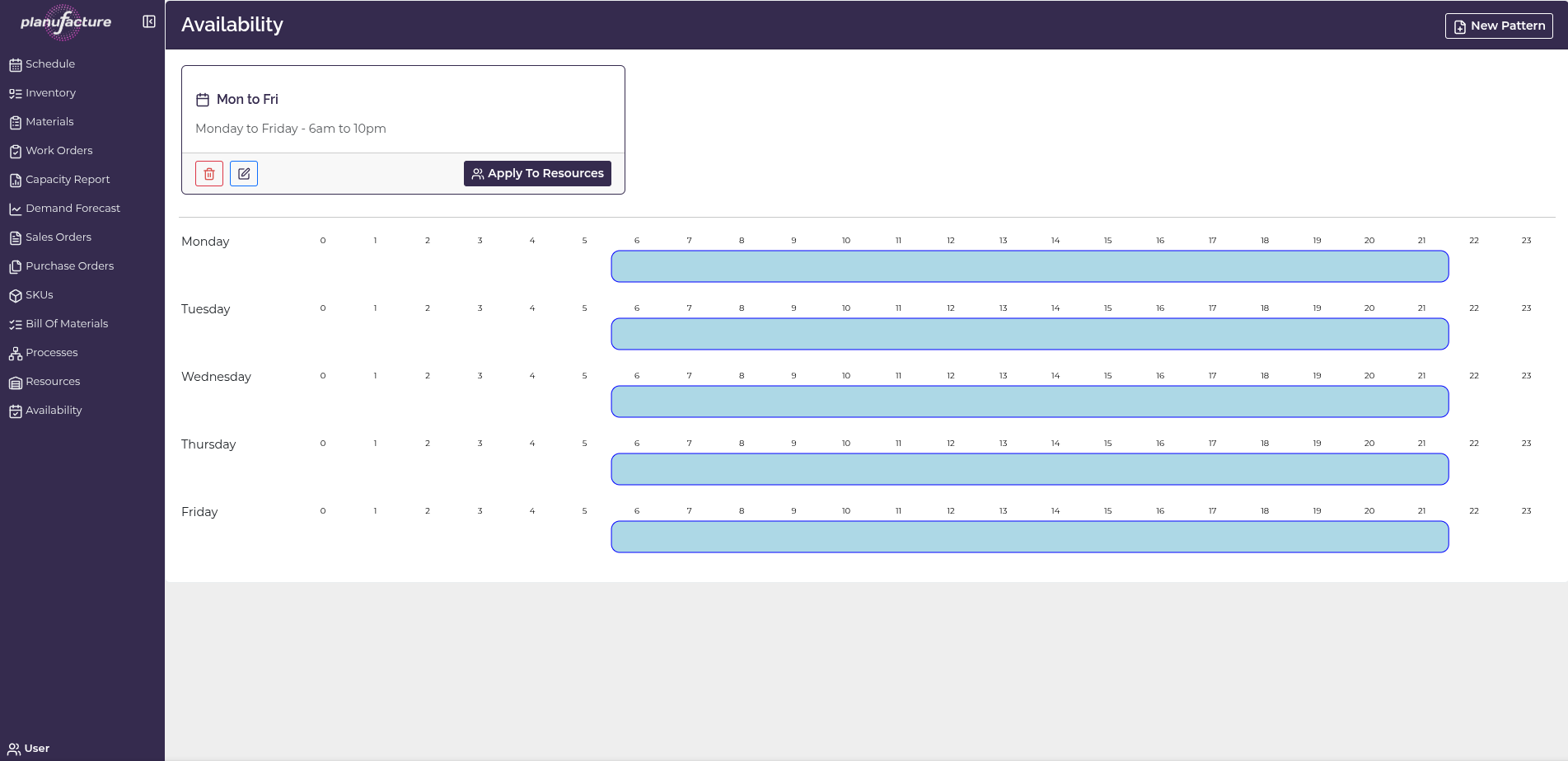
When you select a pattern, you see:
Pattern Card:
- Pattern name (e.g., "Mon to Fri")
- Description (e.g., "Monday To Friday - 6am to 10pm")
- Action buttons:
- Delete pattern icon
- Edit pattern icon
- Apply To Resources: Assign pattern to resources
Visual Timeline
Weekly calendar view showing availability:
Days of week (rows):
- Monday
- Tuesday
- Wednesday
- Thursday
- Friday
- (Saturday, Sunday if applicable)
Hours (columns):
- 0-23 (24-hour format)
- Each hour marked on horizontal axis
Time blocks:
- Blue bars indicate operational hours
- Bars span from start time to end time
- Example: 6am to 10pm shown as blue bar from hour 6 to hour 22
Reading the timeline:
- Blue bar = resource is available during these hours
- No bar = resource is not available
- Consistent patterns across days show regular schedules
- Different patterns per day show variable schedules
New Pattern Creation
Click New Pattern to create availability pattern:
Page Header:
- Title: "New Pattern"
- Back button: Return to patterns list
Pattern Information
Fields:
- Name: Pattern name (e.g., "test")
- Description: Pattern description (e.g., "testing")
Pattern Items
Add Pattern Item button: Add new time block
Day(s) to add to Pattern:
- Dropdown with options:
- Monday
- Tuesday
- Wednesday
- Thursday
- Friday
- Saturday
- Sunday
- Monday to Friday
- Monday to Sunday
Add Time Block button: Add time range for selected day(s)
Time Block Configuration
When adding a time block:
From: Time picker
- Hour selector (00-23)
- Minute selector (00-59)
- Example: 00:00
To: Time picker
- Hour selector (00-23)
- Minute selector (00-59)
- Example: 23:59
Actions:
- Save: Apply the pattern
Common Workflows
Viewing Availability Patterns
- Navigate to Availability
- Review list of patterns
- Click on pattern to see details
- View visual timeline showing operational hours
Creating a New Pattern
- Click New Pattern button
- Enter Name (e.g., "Mon to Fri")
- Enter Description (e.g., "Monday To Friday - 6am to 10pm")
- Click Add Pattern Item
- Select Day(s) from dropdown (e.g., "Monday to Friday")
- Click Add Time Block
- Set From time (e.g., 06:00)
- Set To time (e.g., 22:00)
- Click Save
Creating Multi-Block Patterns
- Create pattern as above
- Click Add Pattern Item again
- Select different day(s) or same day(s)
- Add different time block
- Repeat for multiple shifts or breaks
- Example: Morning shift 6am-12pm, Afternoon shift 1pm-10pm
Applying Pattern to Resources
- View pattern details
- Click Apply To Resources button
- Select resources to assign this pattern
- Resources will only be available during pattern times
Editing Existing Pattern
- Click on pattern in list
- Click Edit icon
- Modify name, description, or time blocks
- Save changes
- All assigned resources updated automatically
Understanding Availability Patterns
Purpose:
- Define when resources are operational
- Model shifts, working hours, maintenance windows
- Control when production can be scheduled
Time blocks:
- Each block defines a period of availability
- Multiple blocks per day for split shifts
- Different blocks for different days
Day options:
- Individual days (Monday, Tuesday, etc.)
- Day ranges (Monday to Friday, Monday to Sunday)
- Flexible for any schedule pattern
Pattern application:
- Patterns assigned to resources
- Scheduler respects availability constraints
- Work orders only scheduled during available times
Common Patterns
Standard workweek:
- Monday to Friday, 8am to 5pm
- Single time block covering weekdays
Extended hours:
- Monday to Friday, 6am to 10pm
- Longer operational day
24/7 operation:
- Monday to Sunday, 00:00 to 23:59
- Continuous availability
Split shifts:
- Morning: 6am to 12pm
- Afternoon: 1pm to 10pm
- Two time blocks per day
Weekend operation:
- Saturday to Sunday, specific hours
- Separate pattern for weekend work
Tips
- Name patterns clearly to indicate schedule (e.g., "Mon-Fri 8-5", "24/7", "Weekend Shift")
- Use day ranges (Monday to Friday) for efficiency
- Create multiple time blocks for split shifts or breaks
- Apply To Resources to assign pattern to multiple resources at once
- Edit patterns to adjust schedules - changes apply to all assigned resources
- Use visual timeline to verify pattern looks correct
- Create separate patterns for different shift types
- Consider maintenance windows by excluding certain hours
- Seasonal patterns can be created for different times of year
Related
- Resources: Resources assigned to availability patterns
- Schedule: Work orders only scheduled during available times
- Capacity Report: Available hours calculated from patterns
- Processes: Process duration must fit within available time
- Work Orders: Cannot be scheduled outside availability windows